Please Note: This text placed below here is for the express purpose of documentation and indexing.
It is not intended to be used by the viewer.
Viewers should therefore focus on the Flash presentation located at the top of this page.
It is not intended to be used by the viewer.
Viewers should therefore focus on the Flash presentation located at the top of this page.
Entering Data into LAWS/Pro
Entering Data into LAWS/Pro
Introduction
Introduction
Data Entry Introduction
LAWS/Pro has been designed to optimize your data entry efforts. Where possible, LAWS/Pro works with you to accept information in the way you want to enter it. LAWS/Pro also has shortcuts and abbreviations to make entering of data quick and easy. This tutorial walks through some of the common types for data entry fields and provides you with helpful hint, tips and information to help you enter information quickly.
Dates
Dates
Regular Dates
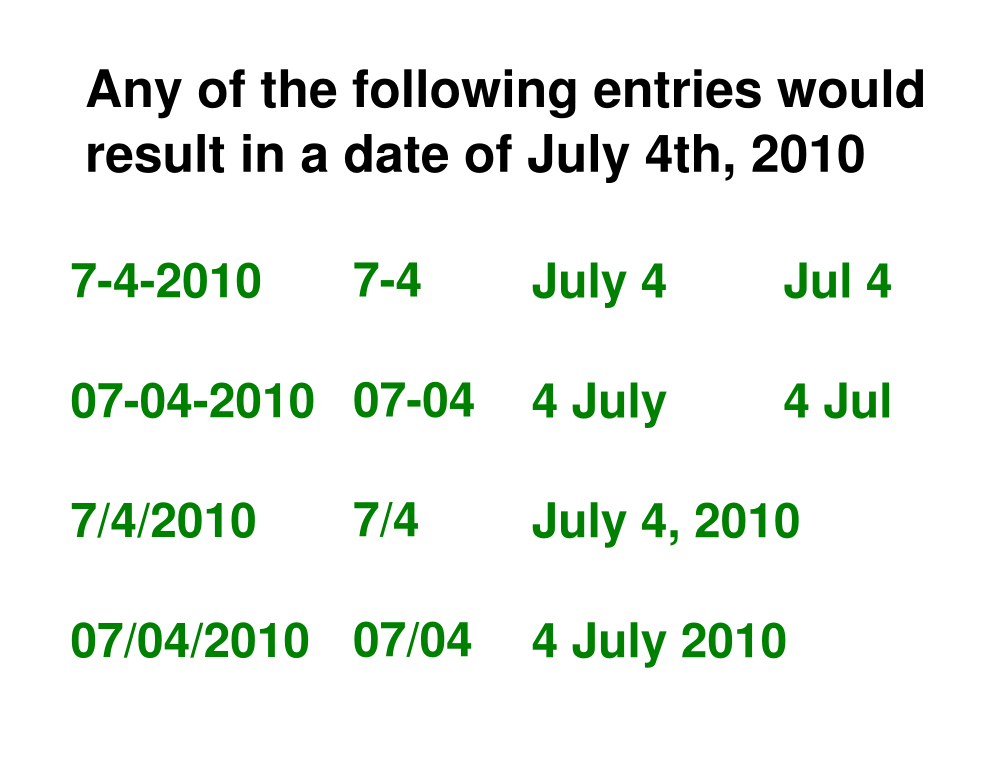
LAWS/Pro has been designed to take many different formats of dates. Dates should always be entered with the month first, the day of the month second, and optionally the year, You can enter dates using either dashes or slashes as a separator, and enter the year in either two or four digit form. You can leave out the year if you are entering something for the current year. For example, assuming that all of these dates were entered during the year 2010, all of these would render the same date of July the fourth, 2010.
Relative Dates
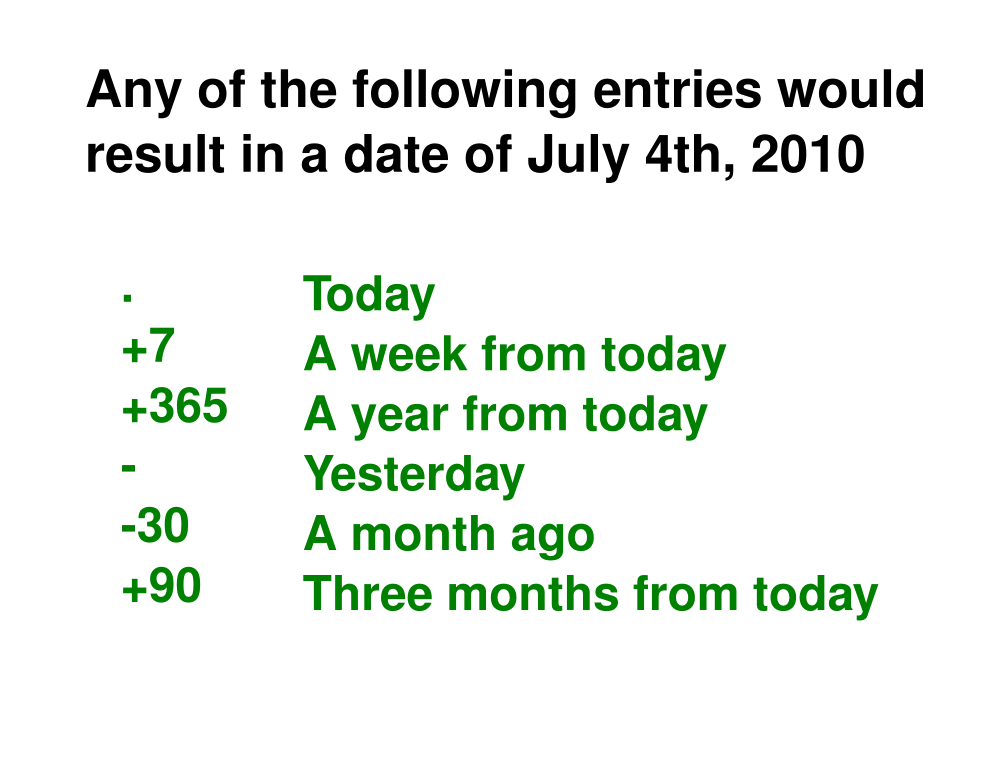
There are also other shortcuts you can use for relative dates, or dates that are relative to today. For example, entering just a period, will give you todays date. Entering a plus or a minus sign, followed by a number , will give you a relative date based on your number, before or after today. As an example, if I wanted to set a date for a week, or seven days from today, I could enter plus seven. Entering just plus or minus with no other numbers is a shortcut for entering yesterday or tomorrows date.
Times
Times
Standard Times
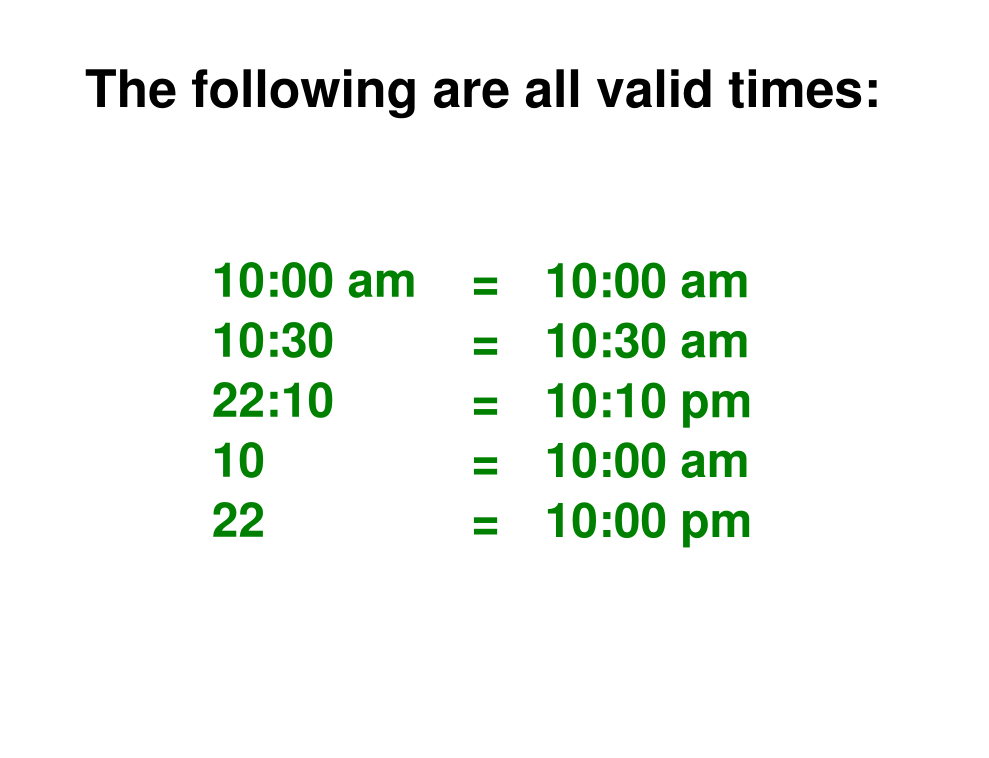
Times are entered in hour and minute format. The hour can be either in 12 or 24 hour format. If you are using 12 hour format, then times should be sufficksed with an a m or p m. You can leave off the minutes for times on the hour. If you enter a partial time, then it will be adjusted with a best guess value. Here are some samples of valid times.
Relative Times
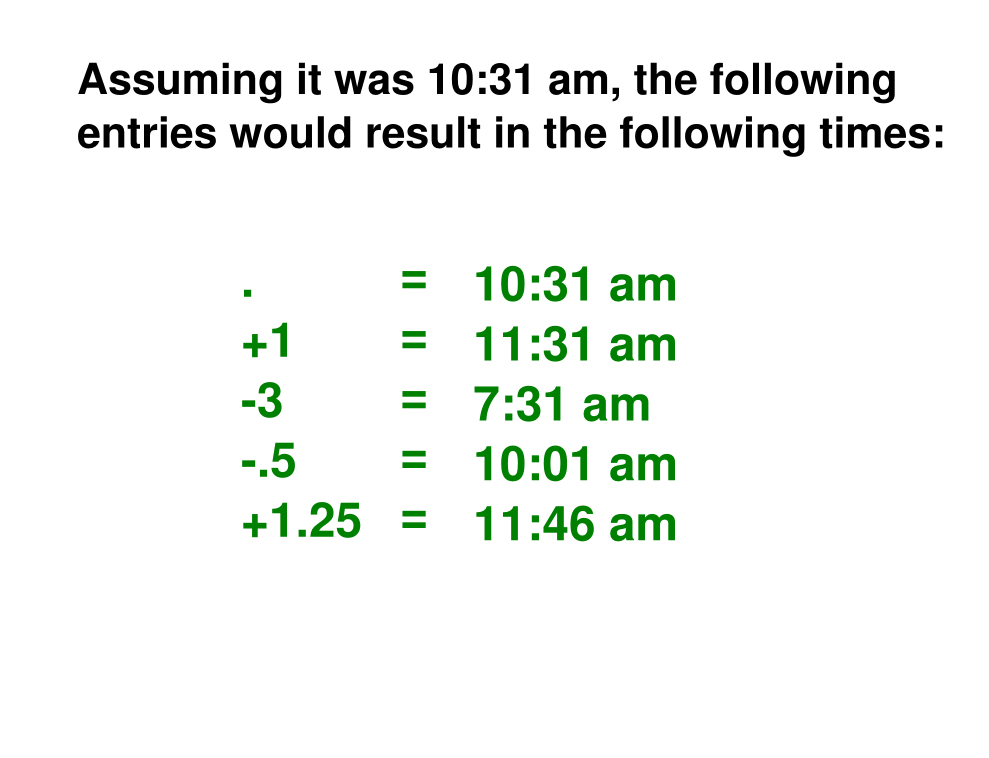
Times can also be specified in a relative format. Entering a period will result in the current time. Negative numbers represent past hours, and positive numbers can be used for future times. When entering relative times, decimal places can also be used to indicate partial hours. For example, point 2 5 would indicate one quarter, hour or 15 minutes.
Attorney Codes
Attorney Codes
Standard Allowable Attorneys
Selecting Self Attorney
Clients / Matters
Clients / Matters
Client Selection
Matter Selection
Super Matter Selection
Bill / Act Codes
Bill / Act Codes
Selecting Bill COdes
Automatic Descriptions
Descriptions
Descriptions
Standard data entry
Abbreviation Codes
Summary
Summary
Data Entry Summation
Entering Data into LAWS/Pro
Introduction
Introduction
Data Entry Introduction
LAWS/Pro has been designed to optimize your data entry efforts. Where possible, LAWS/Pro works with you to accept information in the way you want to enter it. LAWS/Pro also has shortcuts and abbreviations to make entering of data quick and easy. This tutorial walks through some of the common types for data entry fields and provides you with helpful hint, tips and information to help you enter information quickly.
Dates
Dates
Regular Dates
LAWS/Pro has been designed to take many different formats of dates. Dates should always be entered with the month first, the day of the month second, and optionally the year, You can enter dates using either dashes or slashes as a separator, and enter the year in either two or four digit form. You can leave out the year if you are entering something for the current year. For example, assuming that all of these dates were entered during the year 2010, all of these would render the same date of July the fourth, 2010.
Relative Dates
There are also other shortcuts you can use for relative dates, or dates that are relative to today. For example, entering just a period, will give you todays date. Entering a plus or a minus sign, followed by a number , will give you a relative date based on your number, before or after today. As an example, if I wanted to set a date for a week, or seven days from today, I could enter plus seven. Entering just plus or minus with no other numbers is a shortcut for entering yesterday or tomorrows date.
Times
Times
Standard Times
Times are entered in hour and minute format. The hour can be either in 12 or 24 hour format. If you are using 12 hour format, then times should be sufficksed with an a m or p m. You can leave off the minutes for times on the hour. If you enter a partial time, then it will be adjusted with a best guess value. Here are some samples of valid times.
Relative Times
Times can also be specified in a relative format. Entering a period will result in the current time. Negative numbers represent past hours, and positive numbers can be used for future times. When entering relative times, decimal places can also be used to indicate partial hours. For example, point 2 5 would indicate one quarter, hour or 15 minutes.
Attorney Codes
Attorney Codes
Standard Allowable Attorneys
Selecting Self Attorney
Clients / Matters
Clients / Matters
Client Selection
Matter Selection
Super Matter Selection
Bill / Act Codes
Bill / Act Codes
Selecting Bill COdes
Automatic Descriptions
Descriptions
Descriptions
Standard data entry
Abbreviation Codes
Summary
Summary
Data Entry Summation
Introduction
Introduction
Data Entry Introduction
LAWS/Pro has been designed to optimize your data entry efforts. Where possible, LAWS/Pro works with you to accept information in the way you want to enter it. LAWS/Pro also has shortcuts and abbreviations to make entering of data quick and easy. This tutorial walks through some of the common types for data entry fields and provides you with helpful hint, tips and information to help you enter information quickly.
Dates
Dates
Regular Dates
LAWS/Pro has been designed to take many different formats of dates. Dates should always be entered with the month first, the day of the month second, and optionally the year, You can enter dates using either dashes or slashes as a separator, and enter the year in either two or four digit form. You can leave out the year if you are entering something for the current year. For example, assuming that all of these dates were entered during the year 2010, all of these would render the same date of July the fourth, 2010.
Relative Dates
There are also other shortcuts you can use for relative dates, or dates that are relative to today. For example, entering just a period, will give you todays date. Entering a plus or a minus sign, followed by a number , will give you a relative date based on your number, before or after today. As an example, if I wanted to set a date for a week, or seven days from today, I could enter plus seven. Entering just plus or minus with no other numbers is a shortcut for entering yesterday or tomorrows date.
Times
Times
Standard Times
Times are entered in hour and minute format. The hour can be either in 12 or 24 hour format. If you are using 12 hour format, then times should be sufficksed with an a m or p m. You can leave off the minutes for times on the hour. If you enter a partial time, then it will be adjusted with a best guess value. Here are some samples of valid times.
Relative Times
Times can also be specified in a relative format. Entering a period will result in the current time. Negative numbers represent past hours, and positive numbers can be used for future times. When entering relative times, decimal places can also be used to indicate partial hours. For example, point 2 5 would indicate one quarter, hour or 15 minutes.
Attorney Codes
Attorney Codes
Standard Allowable Attorneys
Selecting Self Attorney
Clients / Matters
Clients / Matters
Client Selection
Matter Selection
Super Matter Selection
Bill / Act Codes
Bill / Act Codes
Selecting Bill COdes
Automatic Descriptions
Descriptions
Descriptions
Standard data entry
Abbreviation Codes
Summary
Summary
Data Entry Summation
Introduction
Data Entry Introduction
LAWS/Pro has been designed to optimize your data entry efforts. Where possible, LAWS/Pro works with you to accept information in the way you want to enter it. LAWS/Pro also has shortcuts and abbreviations to make entering of data quick and easy. This tutorial walks through some of the common types for data entry fields and provides you with helpful hint, tips and information to help you enter information quickly.
Dates
Dates
Regular Dates
LAWS/Pro has been designed to take many different formats of dates. Dates should always be entered with the month first, the day of the month second, and optionally the year, You can enter dates using either dashes or slashes as a separator, and enter the year in either two or four digit form. You can leave out the year if you are entering something for the current year. For example, assuming that all of these dates were entered during the year 2010, all of these would render the same date of July the fourth, 2010.
Relative Dates
There are also other shortcuts you can use for relative dates, or dates that are relative to today. For example, entering just a period, will give you todays date. Entering a plus or a minus sign, followed by a number , will give you a relative date based on your number, before or after today. As an example, if I wanted to set a date for a week, or seven days from today, I could enter plus seven. Entering just plus or minus with no other numbers is a shortcut for entering yesterday or tomorrows date.
Times
Times
Standard Times
Times are entered in hour and minute format. The hour can be either in 12 or 24 hour format. If you are using 12 hour format, then times should be sufficksed with an a m or p m. You can leave off the minutes for times on the hour. If you enter a partial time, then it will be adjusted with a best guess value. Here are some samples of valid times.
Relative Times
Times can also be specified in a relative format. Entering a period will result in the current time. Negative numbers represent past hours, and positive numbers can be used for future times. When entering relative times, decimal places can also be used to indicate partial hours. For example, point 2 5 would indicate one quarter, hour or 15 minutes.
Attorney Codes
Attorney Codes
Standard Allowable Attorneys
Selecting Self Attorney
Clients / Matters
Clients / Matters
Client Selection
Matter Selection
Super Matter Selection
Bill / Act Codes
Bill / Act Codes
Selecting Bill COdes
Automatic Descriptions
Descriptions
Descriptions
Standard data entry
Abbreviation Codes
Summary
Summary
Data Entry Summation
Data Entry Introduction
LAWS/Pro has been designed to optimize your data entry efforts. Where possible, LAWS/Pro works with you to accept information in the way you want to enter it. LAWS/Pro also has shortcuts and abbreviations to make entering of data quick and easy. This tutorial walks through some of the common types for data entry fields and provides you with helpful hint, tips and information to help you enter information quickly.
Dates
Dates
Regular Dates
LAWS/Pro has been designed to take many different formats of dates. Dates should always be entered with the month first, the day of the month second, and optionally the year, You can enter dates using either dashes or slashes as a separator, and enter the year in either two or four digit form. You can leave out the year if you are entering something for the current year. For example, assuming that all of these dates were entered during the year 2010, all of these would render the same date of July the fourth, 2010.
Relative Dates
There are also other shortcuts you can use for relative dates, or dates that are relative to today. For example, entering just a period, will give you todays date. Entering a plus or a minus sign, followed by a number , will give you a relative date based on your number, before or after today. As an example, if I wanted to set a date for a week, or seven days from today, I could enter plus seven. Entering just plus or minus with no other numbers is a shortcut for entering yesterday or tomorrows date.
Times
Times
Standard Times
Times are entered in hour and minute format. The hour can be either in 12 or 24 hour format. If you are using 12 hour format, then times should be sufficksed with an a m or p m. You can leave off the minutes for times on the hour. If you enter a partial time, then it will be adjusted with a best guess value. Here are some samples of valid times.
Relative Times
Times can also be specified in a relative format. Entering a period will result in the current time. Negative numbers represent past hours, and positive numbers can be used for future times. When entering relative times, decimal places can also be used to indicate partial hours. For example, point 2 5 would indicate one quarter, hour or 15 minutes.
Attorney Codes
Attorney Codes
Standard Allowable Attorneys
Selecting Self Attorney
Clients / Matters
Clients / Matters
Client Selection
Matter Selection
Super Matter Selection
Bill / Act Codes
Bill / Act Codes
Selecting Bill COdes
Automatic Descriptions
Descriptions
Descriptions
Standard data entry
Abbreviation Codes
Summary
Summary
Data Entry Summation
LAWS/Pro has been designed to optimize your data entry efforts. Where possible, LAWS/Pro works with you to accept information in the way you want to enter it. LAWS/Pro also has shortcuts and abbreviations to make entering of data quick and easy. This tutorial walks through some of the common types for data entry fields and provides you with helpful hint, tips and information to help you enter information quickly.
Dates
Dates
Regular Dates
LAWS/Pro has been designed to take many different formats of dates. Dates should always be entered with the month first, the day of the month second, and optionally the year, You can enter dates using either dashes or slashes as a separator, and enter the year in either two or four digit form. You can leave out the year if you are entering something for the current year. For example, assuming that all of these dates were entered during the year 2010, all of these would render the same date of July the fourth, 2010.
Relative Dates
There are also other shortcuts you can use for relative dates, or dates that are relative to today. For example, entering just a period, will give you todays date. Entering a plus or a minus sign, followed by a number , will give you a relative date based on your number, before or after today. As an example, if I wanted to set a date for a week, or seven days from today, I could enter plus seven. Entering just plus or minus with no other numbers is a shortcut for entering yesterday or tomorrows date.
Times
Times
Standard Times
Times are entered in hour and minute format. The hour can be either in 12 or 24 hour format. If you are using 12 hour format, then times should be sufficksed with an a m or p m. You can leave off the minutes for times on the hour. If you enter a partial time, then it will be adjusted with a best guess value. Here are some samples of valid times.
Relative Times
Times can also be specified in a relative format. Entering a period will result in the current time. Negative numbers represent past hours, and positive numbers can be used for future times. When entering relative times, decimal places can also be used to indicate partial hours. For example, point 2 5 would indicate one quarter, hour or 15 minutes.
Attorney Codes
Attorney Codes
Standard Allowable Attorneys
Selecting Self Attorney
Clients / Matters
Clients / Matters
Client Selection
Matter Selection
Super Matter Selection
Bill / Act Codes
Bill / Act Codes
Selecting Bill COdes
Automatic Descriptions
Descriptions
Descriptions
Standard data entry
Abbreviation Codes
Summary
Summary
Data Entry Summation
Dates
Regular Dates
LAWS/Pro has been designed to take many different formats of dates. Dates should always be entered with the month first, the day of the month second, and optionally the year, You can enter dates using either dashes or slashes as a separator, and enter the year in either two or four digit form. You can leave out the year if you are entering something for the current year. For example, assuming that all of these dates were entered during the year 2010, all of these would render the same date of July the fourth, 2010.
Relative Dates
There are also other shortcuts you can use for relative dates, or dates that are relative to today. For example, entering just a period, will give you todays date. Entering a plus or a minus sign, followed by a number , will give you a relative date based on your number, before or after today. As an example, if I wanted to set a date for a week, or seven days from today, I could enter plus seven. Entering just plus or minus with no other numbers is a shortcut for entering yesterday or tomorrows date.
Times
Times
Standard Times
Times are entered in hour and minute format. The hour can be either in 12 or 24 hour format. If you are using 12 hour format, then times should be sufficksed with an a m or p m. You can leave off the minutes for times on the hour. If you enter a partial time, then it will be adjusted with a best guess value. Here are some samples of valid times.
Relative Times
Times can also be specified in a relative format. Entering a period will result in the current time. Negative numbers represent past hours, and positive numbers can be used for future times. When entering relative times, decimal places can also be used to indicate partial hours. For example, point 2 5 would indicate one quarter, hour or 15 minutes.
Attorney Codes
Attorney Codes
Standard Allowable Attorneys
Selecting Self Attorney
Clients / Matters
Clients / Matters
Client Selection
Matter Selection
Super Matter Selection
Bill / Act Codes
Bill / Act Codes
Selecting Bill COdes
Automatic Descriptions
Descriptions
Descriptions
Standard data entry
Abbreviation Codes
Summary
Summary
Data Entry Summation
Regular Dates
LAWS/Pro has been designed to take many different formats of dates. Dates should always be entered with the month first, the day of the month second, and optionally the year, You can enter dates using either dashes or slashes as a separator, and enter the year in either two or four digit form. You can leave out the year if you are entering something for the current year. For example, assuming that all of these dates were entered during the year 2010, all of these would render the same date of July the fourth, 2010.
Relative Dates
There are also other shortcuts you can use for relative dates, or dates that are relative to today. For example, entering just a period, will give you todays date. Entering a plus or a minus sign, followed by a number , will give you a relative date based on your number, before or after today. As an example, if I wanted to set a date for a week, or seven days from today, I could enter plus seven. Entering just plus or minus with no other numbers is a shortcut for entering yesterday or tomorrows date.
Times
Times
Standard Times
Times are entered in hour and minute format. The hour can be either in 12 or 24 hour format. If you are using 12 hour format, then times should be sufficksed with an a m or p m. You can leave off the minutes for times on the hour. If you enter a partial time, then it will be adjusted with a best guess value. Here are some samples of valid times.
Relative Times
Times can also be specified in a relative format. Entering a period will result in the current time. Negative numbers represent past hours, and positive numbers can be used for future times. When entering relative times, decimal places can also be used to indicate partial hours. For example, point 2 5 would indicate one quarter, hour or 15 minutes.
Attorney Codes
Attorney Codes
Standard Allowable Attorneys
Selecting Self Attorney
Clients / Matters
Clients / Matters
Client Selection
Matter Selection
Super Matter Selection
Bill / Act Codes
Bill / Act Codes
Selecting Bill COdes
Automatic Descriptions
Descriptions
Descriptions
Standard data entry
Abbreviation Codes
Summary
Summary
Data Entry Summation
LAWS/Pro has been designed to take many different formats of dates. Dates should always be entered with the month first, the day of the month second, and optionally the year, You can enter dates using either dashes or slashes as a separator, and enter the year in either two or four digit form. You can leave out the year if you are entering something for the current year. For example, assuming that all of these dates were entered during the year 2010, all of these would render the same date of July the fourth, 2010.
Relative Dates
There are also other shortcuts you can use for relative dates, or dates that are relative to today. For example, entering just a period, will give you todays date. Entering a plus or a minus sign, followed by a number , will give you a relative date based on your number, before or after today. As an example, if I wanted to set a date for a week, or seven days from today, I could enter plus seven. Entering just plus or minus with no other numbers is a shortcut for entering yesterday or tomorrows date.
Times
Times
Standard Times
Times are entered in hour and minute format. The hour can be either in 12 or 24 hour format. If you are using 12 hour format, then times should be sufficksed with an a m or p m. You can leave off the minutes for times on the hour. If you enter a partial time, then it will be adjusted with a best guess value. Here are some samples of valid times.
Relative Times
Times can also be specified in a relative format. Entering a period will result in the current time. Negative numbers represent past hours, and positive numbers can be used for future times. When entering relative times, decimal places can also be used to indicate partial hours. For example, point 2 5 would indicate one quarter, hour or 15 minutes.
Attorney Codes
Attorney Codes
Standard Allowable Attorneys
Selecting Self Attorney
Clients / Matters
Clients / Matters
Client Selection
Matter Selection
Super Matter Selection
Bill / Act Codes
Bill / Act Codes
Selecting Bill COdes
Automatic Descriptions
Descriptions
Descriptions
Standard data entry
Abbreviation Codes
Summary
Summary
Data Entry Summation
There are also other shortcuts you can use for relative dates, or dates that are relative to today. For example, entering just a period, will give you todays date. Entering a plus or a minus sign, followed by a number , will give you a relative date based on your number, before or after today. As an example, if I wanted to set a date for a week, or seven days from today, I could enter plus seven. Entering just plus or minus with no other numbers is a shortcut for entering yesterday or tomorrows date.
Times
Times
Standard Times
Times are entered in hour and minute format. The hour can be either in 12 or 24 hour format. If you are using 12 hour format, then times should be sufficksed with an a m or p m. You can leave off the minutes for times on the hour. If you enter a partial time, then it will be adjusted with a best guess value. Here are some samples of valid times.
Relative Times
Times can also be specified in a relative format. Entering a period will result in the current time. Negative numbers represent past hours, and positive numbers can be used for future times. When entering relative times, decimal places can also be used to indicate partial hours. For example, point 2 5 would indicate one quarter, hour or 15 minutes.
Attorney Codes
Attorney Codes
Standard Allowable Attorneys
Selecting Self Attorney
Clients / Matters
Clients / Matters
Client Selection
Matter Selection
Super Matter Selection
Bill / Act Codes
Bill / Act Codes
Selecting Bill COdes
Automatic Descriptions
Descriptions
Descriptions
Standard data entry
Abbreviation Codes
Summary
Summary
Data Entry Summation
Times
Standard Times
Times are entered in hour and minute format. The hour can be either in 12 or 24 hour format. If you are using 12 hour format, then times should be sufficksed with an a m or p m. You can leave off the minutes for times on the hour. If you enter a partial time, then it will be adjusted with a best guess value. Here are some samples of valid times.
Relative Times
Times can also be specified in a relative format. Entering a period will result in the current time. Negative numbers represent past hours, and positive numbers can be used for future times. When entering relative times, decimal places can also be used to indicate partial hours. For example, point 2 5 would indicate one quarter, hour or 15 minutes.
Attorney Codes
Attorney Codes
Standard Allowable Attorneys
Selecting Self Attorney
Clients / Matters
Clients / Matters
Client Selection
Matter Selection
Super Matter Selection
Bill / Act Codes
Bill / Act Codes
Selecting Bill COdes
Automatic Descriptions
Descriptions
Descriptions
Standard data entry
Abbreviation Codes
Summary
Summary
Data Entry Summation
Standard Times
Times are entered in hour and minute format. The hour can be either in 12 or 24 hour format. If you are using 12 hour format, then times should be sufficksed with an a m or p m. You can leave off the minutes for times on the hour. If you enter a partial time, then it will be adjusted with a best guess value. Here are some samples of valid times.
Relative Times
Times can also be specified in a relative format. Entering a period will result in the current time. Negative numbers represent past hours, and positive numbers can be used for future times. When entering relative times, decimal places can also be used to indicate partial hours. For example, point 2 5 would indicate one quarter, hour or 15 minutes.
Attorney Codes
Attorney Codes
Standard Allowable Attorneys
Selecting Self Attorney
Clients / Matters
Clients / Matters
Client Selection
Matter Selection
Super Matter Selection
Bill / Act Codes
Bill / Act Codes
Selecting Bill COdes
Automatic Descriptions
Descriptions
Descriptions
Standard data entry
Abbreviation Codes
Summary
Summary
Data Entry Summation
Times are entered in hour and minute format. The hour can be either in 12 or 24 hour format. If you are using 12 hour format, then times should be sufficksed with an a m or p m. You can leave off the minutes for times on the hour. If you enter a partial time, then it will be adjusted with a best guess value. Here are some samples of valid times.
Relative Times
Times can also be specified in a relative format. Entering a period will result in the current time. Negative numbers represent past hours, and positive numbers can be used for future times. When entering relative times, decimal places can also be used to indicate partial hours. For example, point 2 5 would indicate one quarter, hour or 15 minutes.
Attorney Codes
Attorney Codes
Standard Allowable Attorneys
Selecting Self Attorney
Clients / Matters
Clients / Matters
Client Selection
Matter Selection
Super Matter Selection
Bill / Act Codes
Bill / Act Codes
Selecting Bill COdes
Automatic Descriptions
Descriptions
Descriptions
Standard data entry
Abbreviation Codes
Summary
Summary
Data Entry Summation
Times can also be specified in a relative format. Entering a period will result in the current time. Negative numbers represent past hours, and positive numbers can be used for future times. When entering relative times, decimal places can also be used to indicate partial hours. For example, point 2 5 would indicate one quarter, hour or 15 minutes.